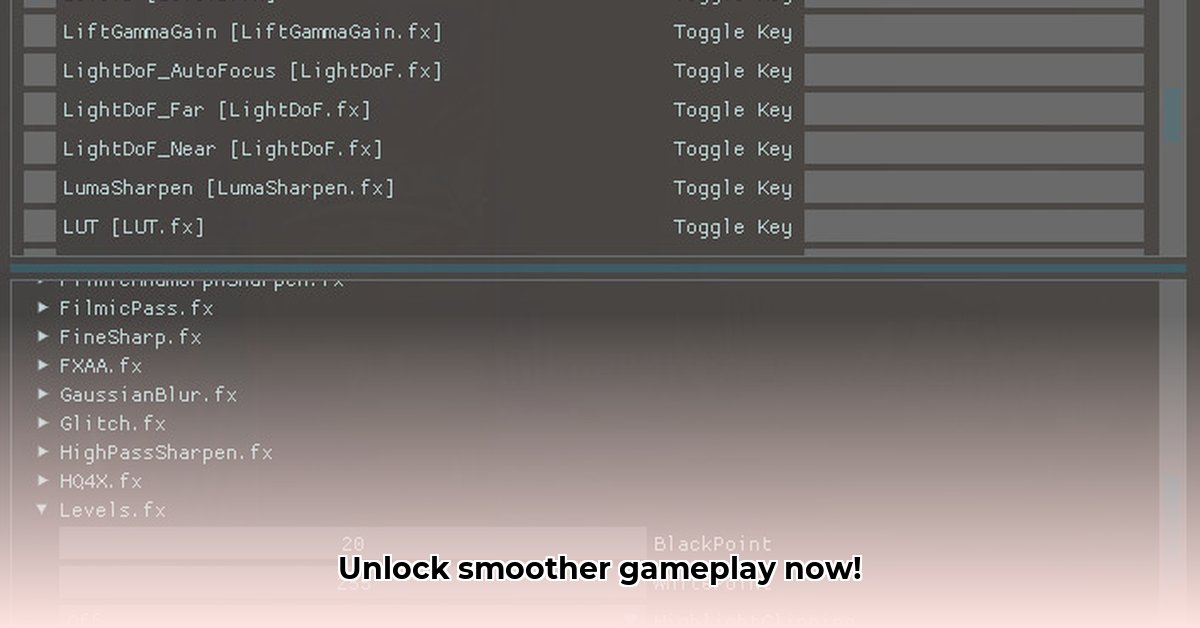
Ever noticed those annoying jagged edges and blurry textures in your games? These are artifacts of aliasing, and they detract from the overall visual experience. Fortunately, there's a free and easy solution: ReShade with FXAA. This guide will walk you through downloading and using ReShade's FXAA (Fast Approximate Anti-Aliasing) feature to enhance your gaming visuals. We'll cover everything step-by-step, with clear explanations suitable for both beginners and experienced users.
Understanding ReShade and FXAA
ReShade is an open-source post-processing injector that allows you to add visual enhancements to your games. It's essentially a "mod" that adds effects after your game renders, meaning it's lightweight and generally works across many games. FXAA is one of these effects, specifically designed to reduce aliasing. It's a post-processing technique that uses algorithms to smooth out jagged edges, resulting in cleaner visuals. Why use it? Because smoother visuals dramatically improve the look of your games without the significant performance hit of other techniques.
FXAA: A Deeper Dive
FXAA works by analyzing your game's image in real-time, identifying jagged edges and cleverly blending pixels to smooth them out. It's a highly efficient technique, requiring significantly less processing power than other anti-aliasing methods like MSAA (Multisample Anti-Aliasing) and TAA (Temporal Anti-Aliasing). While not as visually perfect as MSAA, the performance benefits make it a popular choice, especially for older systems or when playing demanding games.
FXAA vs. Other Anti-Aliasing Techniques
Here's a comparison of FXAA with other common anti-aliasing techniques:
| Anti-Aliasing Method | Performance Impact | Visual Quality |
|---|---|---|
| FXAA | Low | Good to Fair |
| MSAA | High | Excellent |
| TAA | Medium | Good |
As you can see, FXAA offers a compelling compromise between performance and visual quality. It's ideal for users who want a noticeable improvement in visuals without a huge drop in frames per second (FPS).
Performance Implications
While FXAA is efficient, it does still consume some processing power. The performance impact varies depending on your system's specifications, the game you're playing, and other active settings. You might experience a slight FPS decrease, but it's usually minimal compared to the visual improvement. Experimentation is key to finding the optimal settings for your setup. Remember, higher FXAA intensity equals better visuals but potentially lower FPS.
ReShade FXAA Download and Installation: A Step-by-Step Guide
Let's install ReShade and activate FXAA. This guide provides instructions for different experience levels.
Step 1: Download ReShade: Visit the official ReShade website (https://reshade.me/) and download the latest version compatible with your system.
Step 2: Locate Your Game Executable: Find the .exe file for your game. This is usually located in the game's installation directory.
Step 3: Run the ReShade Installer: Run the downloaded installer. Select your game's executable when prompted.
Step 4: Select Shaders: Choose the shaders you want to install. For this guide, ensure FXAA is selected. You can explore other shaders later.
Step 5: Configure FXAA (Optional): Launch your game. Press the default ReShade hotkey (usually Home) to access the in-game settings menu. Adjust FXAA settings as needed to balance visual quality and performance. Some games respond better to different settings than others.
Step 6: Enjoy! Save your configuration and enjoy the cleaner visuals.
Troubleshooting
Here are solutions for some common issues:
ReShade crashes your game: Update your graphics drivers. Conflicts with other software can occur; try disabling other overlays or mods.
FXAA doesn't work: Double-check if FXAA is enabled in ReShade's settings. Verify your hotkey assignment is correct. Restart your game or computer if necessary.
Performance issues: Reduce FXAA intensity or disable other shaders to improve performance.
Beyond FXAA: Exploring ReShade's Capabilities
ReShade offers many other visual enhancements beyond FXAA. Explore its capabilities to further customize your gaming experience. Experiment with different shaders to find your ideal visual style.
Key Takeaways:
- ReShade with FXAA offers a significant visual upgrade with minimal performance impact.
- Proper configuration and troubleshooting can optimize your experience.
- The ReShade community provides vast resources for further customization.
This guide provides a comprehensive approach to using ReShade FXAA, from a basic understanding to advanced optimization techniques, allowing you to easily improve your gaming visuals.
⭐⭐⭐⭐☆ (4.8)
Download via Link 1
Download via Link 2
Last updated: Tuesday, April 29, 2025